

Workbench
Workbench is the built-in UI that ships with PrivateGPT. Once the server is running, open http://localhost:8080/ui — no extra setup needed.
It lets you try every API capability in a browser: chat with your documents, run web searches, query databases, invoke tools, and debug the underlying API calls in real time.
Workbench is a local demonstrator. It stores chats and settings in browser localStorage and has no access control — keep it local. For a production-ready platform, see Zylon.
Workbench does not guarantee exposure of every backend capability. Some features — including multimodality and other advanced or provider-specific capabilities — may be unavailable in the UI even when the API supports them.
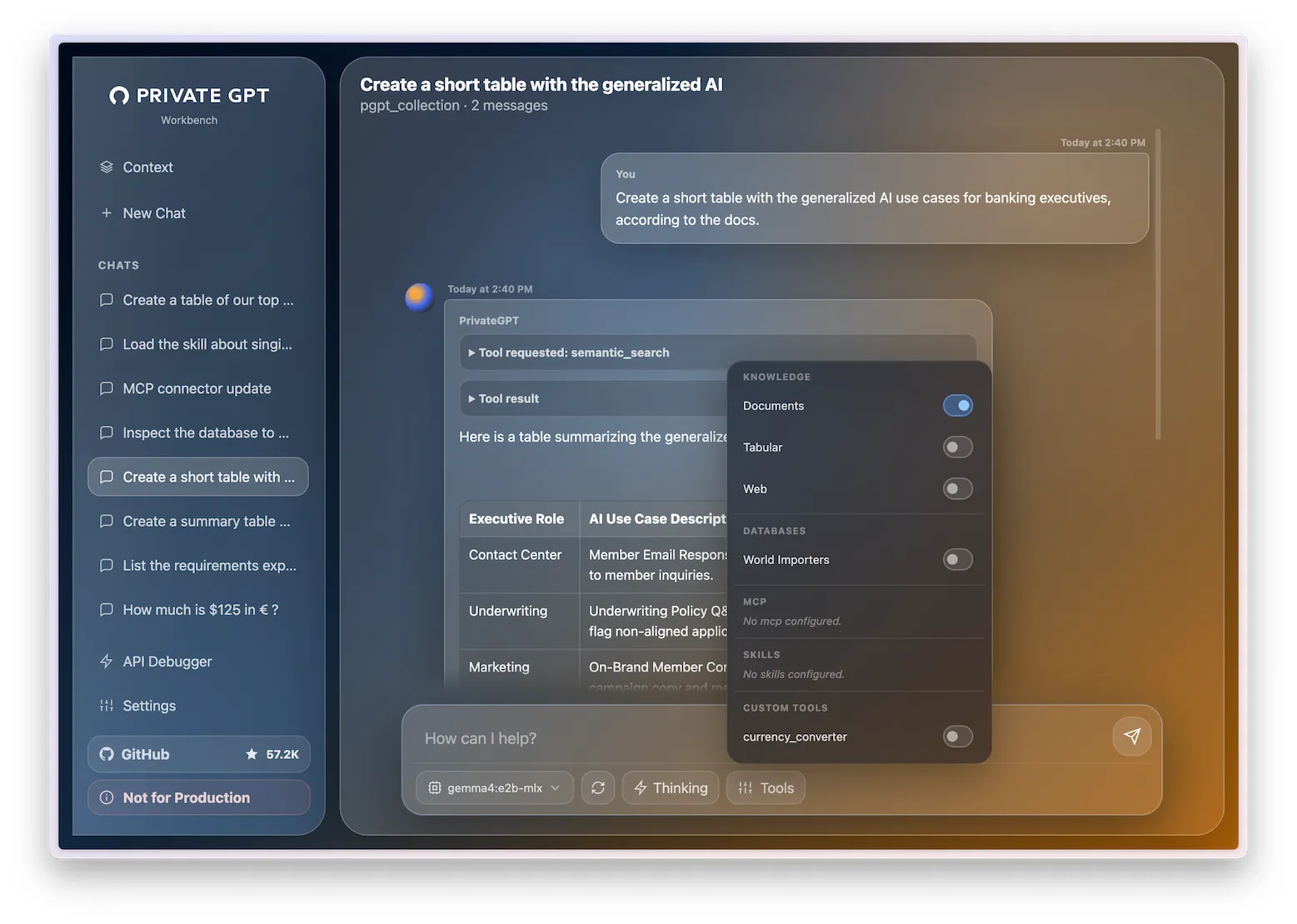
Chat
The main area is a chat interface. Each conversation is saved locally in your browser and restored on reload. You can have multiple conversations and switch between them from the sidebar.
From the chat composer you can toggle which sources are active for that conversation — documents, databases, web, MCP servers, skills, or custom tools.
Context
The Context screen defines what the assistant can access. It has six sections:
API Debugger
The Debugger panel shows every request and response sent to PrivateGPT during your session. Use it to inspect the exact payload, verify which tools were included, or understand why the model responded the way it did.
Settings
Configure how Workbench connects to PrivateGPT: the API base URL, an optional bearer token, a global system prompt, and citation preferences.